

A friend once asked me how I wrapped up 3 hours of work in 30 minutes.
The answer wasn’t speed typing. It was knowing how to use ChatGPT beyond the chat box.
Most people rely on a fraction of what the tool can do. When you combine the built-in features with the right workflow, your workload shrinks fast.
Below is a practical guide by TechVitara to all 25 features, written so you know what they do, how to activate them, and when they’re the right tool for the job.
“The real productivity boost doesn’t come from prompts. It comes from picking the right feature at the right moment.” – TechVitara
The full list: 25 ChatGPT features list, explained 2026
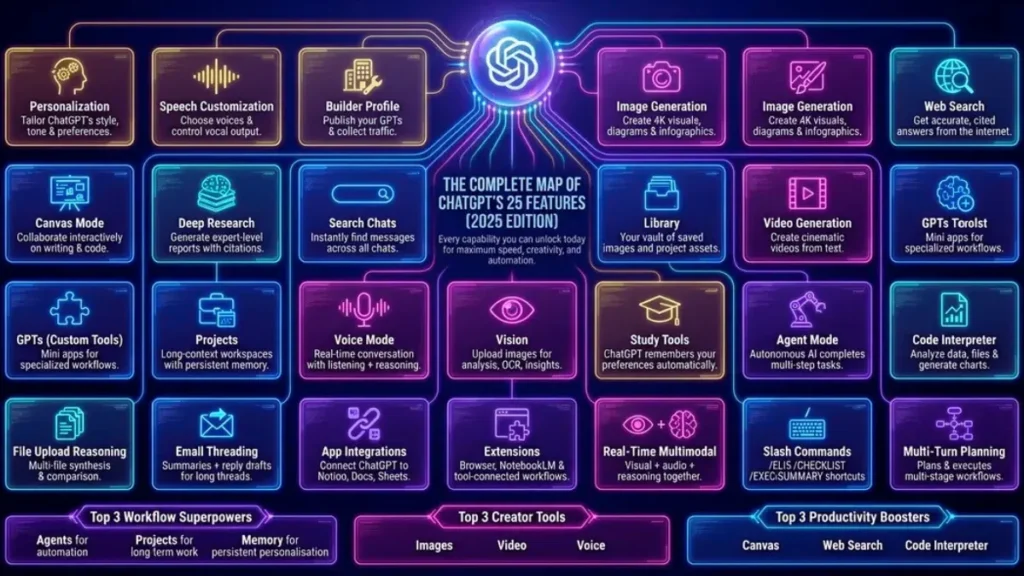
1. Personalization
What it does: Lets ChatGPT adapt to your voice, preferences, and recurring formats.
How to use: Settings → Personalization → upload writing samples and set preferences.
When to use: For consistent brand tone, email templates, or any content you want to sound like you.
2. Speech Customization
What it does: Choose different speaking voices and profiles for audio output.
How to use: Turn on Voice Mode, pick a voice.
When to use: Hands-free drafting, audio notes, or generating voiceovers.
3. Builder Profile
What it does: Publish your own GPTs and get traffic to them.
How to use: Open GPT Builder → design your GPT → complete public profile.
When to use: When you want to offer a public tool, lead magnet, or specialized assistant.
4. Image Generation
What it does: Create images, diagrams, logos, and infographics.
How to use: Upload reference images or enter detailed prompts.
When to use: Social graphics, mockups, concept art, or visual explanations.
5. Web Search
What it does: Performs internet searches with cited reasoning.
How to use: Start prompts with “search the web for…” and define scope.
When to use: When you need current facts, sources, or up-to-date info.
6. Canvas
What it does: In-place collaborative editor for documents and code.
How to use: Open any doc in Canvas and ask ChatGPT to edit or rewrite inline.
When to use: Long-form drafts, collaborative edits, or multi-step rewrites.
7. Deep Research
What it does: Produces long-form, expert-level reports and analysis.
How to use: Define role, scope, depth, and constraints in the prompt.
When to use: Market studies, strategy reports, competitor analysis.
8. Search Chats
What it does: Search across your past conversations with ChatGPT.
How to use: Use the search bar to find keywords or past prompts.
When to use: Recover a prompt, find earlier insights, or reuse past templates.
9. Library
What it does: Stores generated images and media assets you create.
How to use: Open Library → browse saved images and assets.
When to use: Reusing brand assets, saving variations, or creating asset libraries.
10. Video Generation
What it does: Create short clips, animated scenes, and visual pitches.
How to use: Describe shots, motion, and style; supply references if possible.
When to use: Social clips, storyboards, product previews, and ads.
11. GPTs (Custom Tools)
What it does: Build small, purpose-built assistants inside ChatGPT.
How to use: GPT Builder → configure system instructions and examples → deploy.
When to use: Automating repeated workflows like candidate screening, content outlines, or customer replies.
12. Projects
What it does: Persistent workspace that keeps files, notes, and context together.
How to use: Start a Project → upload files and assign goals.
When to use: Multi-week work: books, product launches, research dossiers.
13. Voice Mode
What it does: Real-time spoken conversation with listening and reasoning.
How to use: Tap the microphone and speak naturally.
When to use: Interview practice, live brainstorming, or quick dictation.
14. Vision
What it does: Analyze images, screenshots, diagrams, and charts.
How to use: Upload an image and ask for the specific analysis.
When to use: UX feedback, design critiques, extracting text or data from images.
15. Memory
What it does: Remembers your preferences and recurring details across sessions.
How to use: Turn Memory on in Settings and allow it to save key facts.
When to use: Long-running projects, consistent formatting, or personal preferences.
16. Study Tools
What it does: Structured learning help: explanations, flashcards, quizzes.
How to use: Ask for progressive lessons, generate quizzes, or request practice problems.
When to use: Exam prep, skill learning, onboarding.
17. Agent Mode
What it does: Sets up an agent to plan and run multi-step tasks automatically.
How to use: Provide a goal and let the agent break it down and execute.
When to use: Research projects, data collection, or repetitive workflows.
18. Code Interpreter (Advanced Data Tools)
What it does: Runs Python, analyzes datasets, makes charts and transforms files.
How to use: Upload datasets or files, then ask for analyses or visualizations.
When to use: Data cleaning, analytics, simulations, or report generation.
19. Multi-File Reasoning
What it does: Reads and compares multiple uploaded files together.
How to use: Upload PDFs, docs, or spreadsheets and ask for synthesis.
When to use: Contract reviews, literature reviews, or cross-document summaries.
20. Email Threading
What it does: Summarizes long email chains and drafts replies.
How to use: Paste the thread and request a summary or reply draft.
When to use: Inbox triage, professional responses, or escalation summaries.
21. App Integrations
What it does: Connects ChatGPT to Notion, Google Sheets, Docs, Slack, and more.
How to use: Enable integrations and instruct ChatGPT to pull or push data.
When to use: Automation, publishing, team workflows, and sync tasks.
22. Extensions
What it does: Lets ChatGPT interface with external tools (browsers, NotebookLM, etc.).
How to use: Enable needed extensions and request the desired actions.
When to use: Tool-specific jobs or when external context is required.
23. Real-Time Multimodal
What it does: Combine live vision, audio, and reasoning together.
How to use: Use Voice Mode while sharing images or live camera input.
When to use: Live troubleshooting, coaching, or walkthroughs.
24. Slash Commands
What it does: Quick shortcuts like /ELI5, /Checklist, /ExecutiveSummary.
How to use: Start your message with a slash command.
When to use: Fast standardized outputs without long prompts.
25. Multi-Turn Planning
What it does: Builds staged plans that span multiple sessions and executes tasks over time.
How to use: Give a goal, constraints, and timeline; iterate across turns.
When to use: Roadmaps, training plans, complex campaigns.
How to decide which feature to use (quick guide)?
| Task | Feature |
| Consistent tone | Personalization, Memory |
| Hands-free work | Voice Mode, Speech Customization |
| Visual output | Image Generation, Video Generation, Vision |
| Big datasets | Code Interpreter, Multi-File Reasoning |
| Long projects | Projects, Canvas, Integrations |
| Automation | GPTs, Agent Mode, Multi-Turn Planning |
Little-known ways to get bigger wins (the “secrets”)
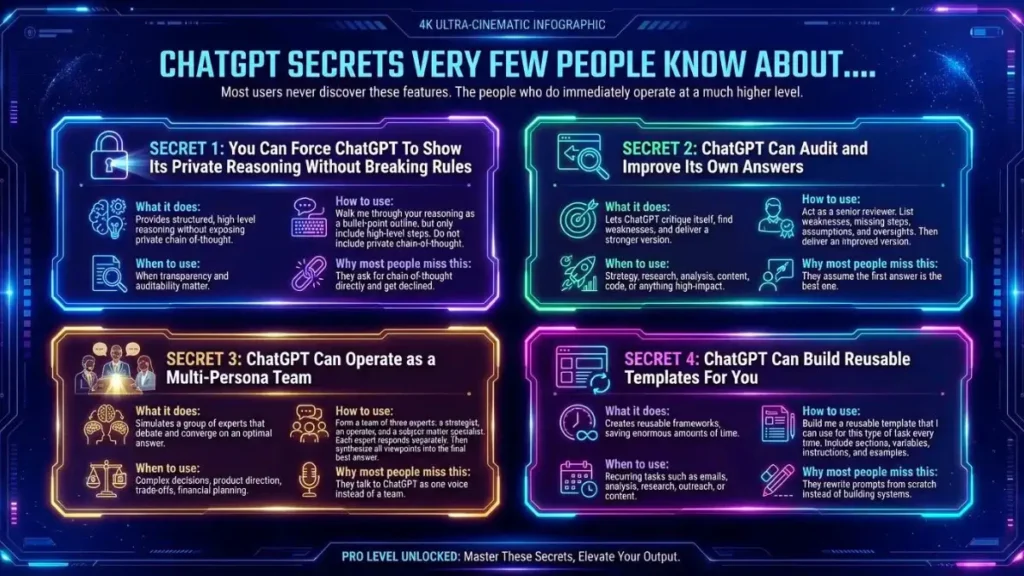
Secret 1 — Ask for high-level reasoning, not chain-of-thought
You can get structured, transparent reasoning by asking for a concise outline of steps or assumptions. Don’t ask for private chain-of-thought; ask for an explicit “reasoning outline” (bulleted) that’s audit-ready.
Example prompt: “List the key steps you used to get this result in a bulleted outline with assumptions and evidence.”
Secret 2 — Force the model to critique itself
Ask the model to audit its own output. Request weaknesses, missing steps, and a revised version.
Example prompt: “Act as a senior reviewer. List three weaknesses, then provide an improved version addressing those points.”
Secret 3 — Simulate a multi-person team
Make ChatGPT play multiple expert roles (strategist, operator, specialist). Have each role respond, then ask for a synthesis.
Example prompt: “Respond as three experts—strategist, operator, and subject-matter specialist—then combine their answers into a final recommendation.”
Secret 4 — Build reusable templates inside GPTs
Instead of re-prompting every time, build a GPT template for repeatable tasks: outreach, audits, reports. This saves prompt friction and standardizes output.
Example prompt: “Create a reusable template for a competitive analysis with variables for industry, time frame, and key metrics.”
Real examples — 3 short workflows
A. Finish a market brief in under an hour
- Upload competitor PDFs → Multi-File Reasoning.
- Ask for a 2-page executive summary → Deep Research.
- Generate charts from spreadsheets → Code Interpreter.
- Create a shareable one-slide infographic → Image Generation.
- Save assets to the team Library → Library.
B. Automate candidate screening
- Build a screening GPT → GPTs.
- Feed resumes and job brief → Multi-File Reasoning.
- Output scores and suggested interview questions → Agent Mode (if auto-executing) or run manually.
C. Rapid course creation
- Outline syllabus and lesson goals → Multi-Turn Planning.
- Draft lesson scripts and quizzes → Study Tools, Deep Research.
- Produce slides and explainer visuals → Image Generation, Video Generation.
- Publish and sync to LMS → App Integrations.
Common mistakes and how to avoid them:
Final thought
You don’t need to master all 25 features. You only need to know which feature solves which problem. Learn a handful that apply to your day-to-day, pair them together, and your productivity will jump. The difference between a good result and a great, fast result is not just asking better prompts — it’s using the platform the way it was built.
FAQs on ChatGPT Features:
Q. What are the main features of ChatGPT?
ChatGPT includes much more than a chat box. Key features include personalization, memory, web search, image generation, voice mode, deep research, code interpretation, custom GPTs, projects, file analysis, and multi-step task planning. Together, these tools help with writing, research, design, data work, learning, and daily productivity.
Q. What is the best feature of ChatGPT for most users?
There isn’t one single “best” feature, but custom GPTs and projects stand out for regular users. Custom GPTs let you build tools for repeat tasks, while projects keep long-term work organized with context, files, and goals—all in one place. These two features alone can save hours every week.
Q. How do I use ChatGPT features beyond basic chatting?
Start by matching the feature to the task. Use projects for long work, deep research for detailed reports, code interpreter for data or spreadsheets, vision for image analysis, and memory for consistent tone. Exploring settings and the GPT Store helps unlock features most people never try.
Q. Can ChatGPT replace multiple tools with its features?
Yes, in many cases. ChatGPT can handle tasks usually spread across writing apps, research tools, design platforms, note-taking software, and basic data analysis tools. While it won’t replace every specialist app, it can reduce tool switching and simplify everyday workflows.
Q. What future features can we expect from ChatGPT?
Future updates are likely to focus on stronger automation, better real-time interaction, deeper app integrations, and more advanced agents that can plan and complete tasks with minimal input. Improvements in voice, vision, and multimodal interaction are also expected to make ChatGPT feel more like a working assistant than a tool.








Comments are closed.